CONTENTS
Finding a target in Lords Mobile is not just about clicking a castle on the map. Knowing which guild a player belongs to, whether they appear active or asleep, where they are located, and what they have done recently can make a difference before starting a rally, ordering an attack, or warning your own guild.
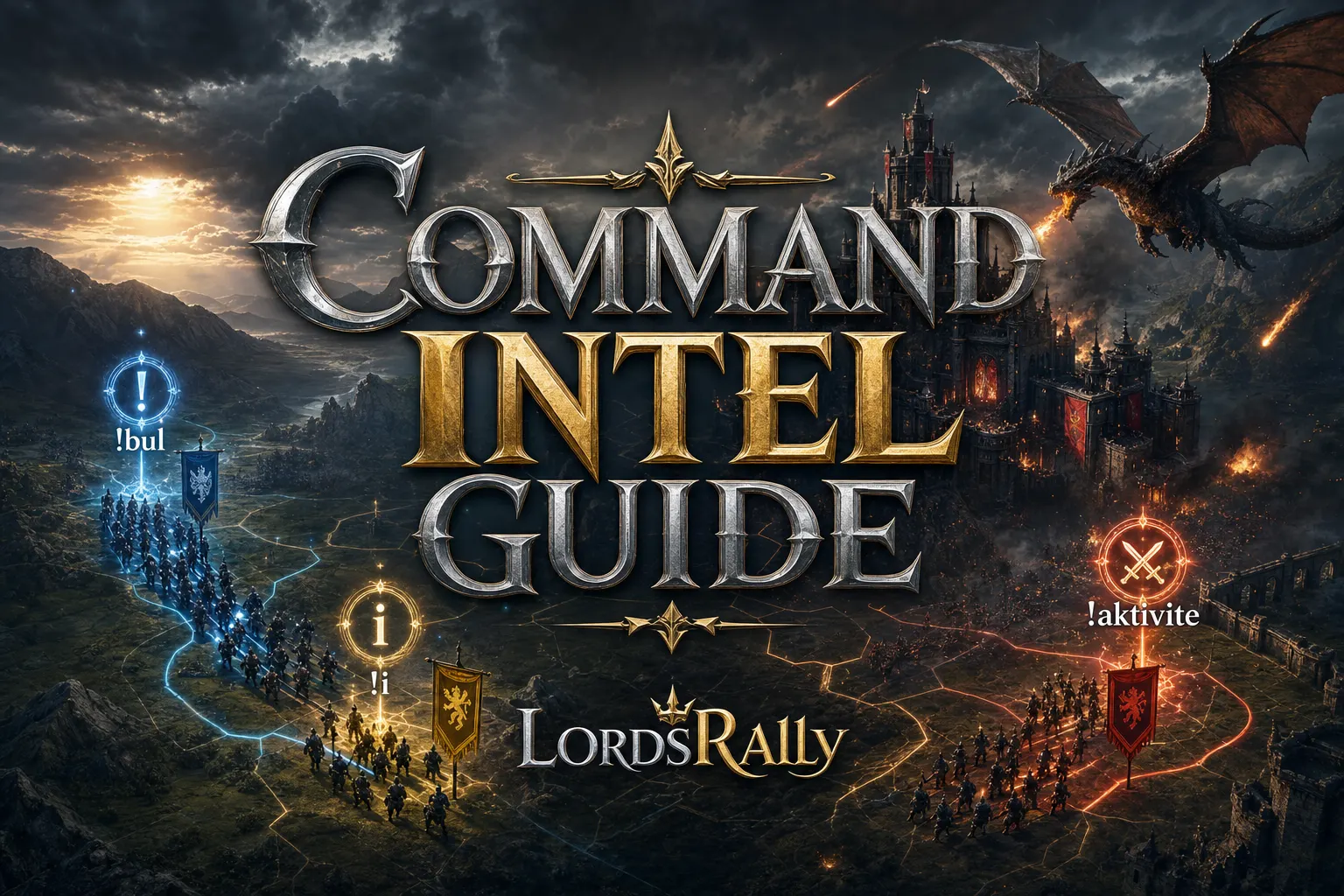
The best place to start with LordsRally is three commands: !find, !i, and !activity. The first clearly identifies a target, the second returns quick results from part of a name during a war, and the third helps you read a player's activity history. Together, they are your basic war desk for enemy castle tracking, shield drop alerts, and kingdom intelligence.
The bot does not wait for fixed scan intervals. It processes kingdom events the moment they happen. Notifications such as shield drops or rally alerts usually arrive in your WhatsApp or Telegram group within 1–3 seconds. But once the notification arrives, researching the right player and confirming your move depends on how you use the commands.
Choose the right command first: three commands, three war questions
The most common mistake new players make is trying to use the same command for every type of information. These three commands have clear roles:
- !find: Use it to search for a specific player in detail. You can check the guild tag, name, activity status, coordinates, might, attack power, shield duration, and visible details in one card.
- !i: Use it for quick searches when you do not have the full name or when every second matters in a war situation. It is designed to find a target from a short part of their name.
- !activity: Use it to check a player's activity history. It gives context about the target's recent movements; it supports a decision, not an attack order by itself.
Think of a simple example: a shield drop alert appears in the guild group. If you can read the name clearly, open the castle card with !find first. If the name is long, contains special characters, or is only partly visible, use !i for a fast search. If you want to assess whether the target may re-shield quickly or be online, use !activity as the final step.
This separation also keeps your chat group from filling up with unnecessary commands while using a Lords Mobile war bot. For broader command categories, see the commands page.
!find: Confirm an enemy castle in one card
!find is the primary command for searching a player by name and confirming the correct castle. In crowded kingdoms where multiple players may have the same or similar names, it should be the rally leader's first checkpoint.
Example usage:
!find FictionalPlayer
A bot card typically provides information like this:
!find → 🧧 [XYZ][R3] FictionalPlayer (35) · 🟢 ACTIVE · 📍(X:512 Y:340) · 💪 1.10B ⚔️ 160M · 🏆 2 days, 00:49 · ━━ Details ━━ 🔎 Shield Dropped / Might Increased / Equipment Changed · [ Info | Equip | Track ] buttons.
When reading this card, do not treat every line as equally important. For a beginner, the priority order should be:
- Guild tag: Is the target really in the enemy guild? This prevents you from acting on another player with the same name.
- Activity status: An active-looking target may recall troops, activate a shield, or respond. It does not prove they are definitely online, but it is a signal you should consider before attacking.
- Coordinates: Important for rally distance, hive position, and possible nearby support.
- Might and attack power: These help you understand the scale of the target. High might alone is not proof of either a strong or weak defense.
- Shield and details line: Lets you quickly see signs such as an open attack window, recent events, or equipment changes.
When WhatsApp supports them, the buttons in the !find result let you open Info, Equip, or Track with one tap. If buttons are unavailable, the bot safely switches back to a numbered list format. This gives you a workflow that stays fast and reliable under different group conditions.
If a target teleports, do not stay locked onto old coordinates. LordsRally helps locate a castle again through automatic location tracking based on its unique identity, even when it teleports and changes its name. Still, confirming its current location with the !find card immediately before an attack is good discipline.
!i: Search by part of a name during a rally
!i is for moments when you do not want to lose time typing a long player name in full. For example, if the attacker or target name is only partly visible in a rally alert, type a distinctive part of the name to get a quick result.
Example usage:
!i Fictional
Use this command especially in these three situations:
- A rally alert arrives and you need to check the attacking player's name quickly.
- The player's name contains symbols, spaces, or difficult characters.
- An R4 gives you only part of the name and you need to identify the right account first.
The key rule is simple: !i is for speed, not final confirmation. If the search returns multiple possible players, confirm the result using the guild tag, name, and other distinguishing data. Then use !find for the detailed card.
For example, if the war group says a player named “Fictional” lost their shield, first use !i to list candidates. If two accounts share that name fragment, check the name and guild match instead of planning an attack on the wrong castle. During KvK, migrations from other kingdoms can increase the number of similar account names.
If you want a closer look at when to choose !i instead of !find, also read the !find or !i? guide.
!activity: Turn target history into decision context
!activity lets you view a castle's activity history. Its purpose is not to make risky claims like “the target is definitely asleep.” Instead, it completes the picture before an attack: it gives context on whether the target has been active, quiet, regular, or unpredictable recently.
Example usage:
!activity FictionalPlayer
In practice, you can use !activity results like this:
- If the target appears unshielded on the !find card, check activity history to make a more cautious attack decision.
- If you are tracking an enemy guild's rally leader, interpret their activity together with other signals.
- If you check the same target several times in a day, take notes based on history instead of relying on a single snapshot.
The healthiest war approach has three stages: current status, identity confirmation, historical context. Use !find for current status, !i when the name is unclear, and !activity for historical context.
For example, a target may have no shield, but the !find card may show activity and !activity history may indicate recent movement. In that situation, instead of blindly starting a rally based only on the “unshielded” status, it is wiser to discuss timing with R4/R5. On the other hand, if the target is far from the hive and there appears to be no nearby guild support, that information can become a meaningful advantage during attack preparation.
For a deeper look at reading activity data, see the target identification guide.
A 30-second search routine for beginners
When a shield drop alert or rally alert arrives, use a fixed order instead of panicking. This routine works for everyone, from solo war players to R4 coordinators:
- 0–5 seconds: Is the name in the alert clear? If not, search the name fragment with !i.
- 5–15 seconds: Open the correct player with !find. Check guild, location, activity status, and shield status.
- 15–25 seconds: If the target is important, review history with !activity. Do not skip this step for high-might accounts or enemy rally leaders.
- 25–30 seconds: Share the result with the guild briefly and clearly: target guild, current location, open status, and a decision note.
The purpose of this workflow is not to turn everyone into a solo war analyst. It is to make sure the guild is discussing the same information for the same target. LordsRally has 12 smart notification types, including shield drops, burning castles, rage activation, leader return, migrations, and rally alerts. You do not need to keep every alert enabled; turn notifications on or off based on your war plan.
If you play across multiple kingdoms, you can monitor each kingdom in a separate group and run up to four kingdoms under the same bot account. No installation is required; you do not need to keep a computer on or run an emulator. You can see the infrastructure details and notification types on the features page.
Turn search commands into war discipline
!find, !i, and !activity are the starting point of the 78-command LordsRally command set. Once you use them well, it becomes much easier to filter open castles with !unshielded, view targets under attack with !smoke, research castles in rage status with !rage, or read the overall kingdom structure with !kingdominfo.
As a beginner, your goal should not be memorizing every command. First, build this habit with these three: confirm the name, check the current card, put history into context. Then, when a shield drop alert appears, you will react not only faster but with more control.
For different war scenarios and command practice, browse the blog archive. Set up LordsRally for your kingdom in a WhatsApp or Telegram group and start using its search and notification flow at your guild's own pace.
Frequently Asked Questions
What is the main difference between !find and !i?
!find is used to view a specific player's detailed castle card. !i performs a quick search using part of a name when the full name is unknown or when speed is needed during a rally. Using !find after an !i result to confirm the right account is the safer workflow.
Does !activity prove that a target is currently online?
No. !activity provides context through activity history; it does not prove that a player is definitely online or definitely asleep. You should also check the !find card for current shield, location, and visible status.
Do I need to keep the game open or leave a computer running to use LordsRally?
No. No installation or application is required. The bot monitors your kingdom 24/7 in a WhatsApp or Telegram group and reports events such as shield drops and rally alerts when they occur.
LordsRally tracks your target castles, finds them again after they teleport and alerts your guild.
Buy Now